
End-to-end demo
This notebook will walk you through the DREEM pipeline end to end, from obtaining data to training a model, evaluating on a held-out dataset, and visualizing the results. Here, we use the CLI for training, tracking, and evaluation; an Advanced Usage section shows how to use configuration files for finer control.
To run this demo, we have provided sample data and configurations. The data used in this demo is small enough to be run on a CPU.
Install DREEM
Download data
Training
We just need to specify the data paths and the crop size to train the model. The crop size is the size (in pixels) of the square box we make around the instance. It should be of the order of the size of the instance.
Lets figure out an appropriate crop size. We can do this by loading a frame and experimenting with different sizes. For this data, a crop size of 70 seems appropriate.
slp_files = glob.glob("./data/train/*.slp")
video_files = glob.glob("./data/train/*.mp4")
labels = sio.load_slp(slp_files[0])
video = imageio.get_reader(video_files[0])
frame = video.get_data(0)
centers = []
for instance in labels[0].instances:
    centers.append(np.nanmean(instance.numpy(), axis=0))
centers = np.array(centers)
plt.imshow(frame)
plt.scatter(centers[:, 0], centers[:, 1])
# Draw a square box centered at each centroid with a given crop size (e.g., 70)
for cx, cy in centers:
    top_left = (int(cx - crop_size // 2), int(cy - crop_size // 2))
    rect = plt.Rectangle(top_left, crop_size, crop_size, linewidth=2, edgecolor='red', facecolor='none')
    plt.gca().add_patch(rect)
plt.show()
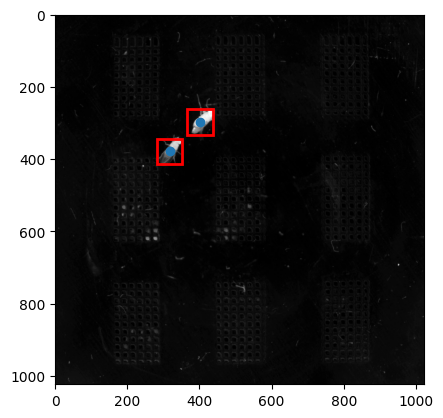
That's it! Now we can train the model
Tracking
Here we run tracking on a video with no ground truth labels using the model we just trained. Note that we're using a command line argument to set the maximum number of tracks to 2 since its a 2 flies dataset. You can run the help command below to see all the options.
models_dir = "./models/dreem_train"
ckpt_files = glob.glob(os.path.join(models_dir, "*final*.ckpt"))
final_ckpt = ckpt_files[0]  # Pick the first one found
print(f"Using checkpoint: {final_ckpt}")
!dreem track ./data/inference --checkpoint {final_ckpt} --output ./results --crop-size {crop_size} --max-tracks 2
Evaluate the tracking results
Here we run inference on a video with ground truth labels. This enables us to compute metrics for our tracking results.
!dreem eval ./data/test --checkpoint {final_ckpt} --output "./eval-results" --crop-size {crop_size} --max-tracks 2
And we're done!
You can take a look at the tracking metrics in the motmetrics.csv file in the directory you chose to save the results to.
Advanced Usage
Some parameters cannot be set through CLI overrides, particularly for training. This section demonstrates the use of configuration files to achieve fine grained control over all training parameters that Pytorch Lightning offers.
Setup configuration file
Here we override the default training parameters to use different augmentations, minimum epochs, and optimizer parameters. You can edit these directly in the config file at the path below. Try out some of your own augmentations! We use Albumentations for augmentations.
train_config_path = "./data/configs/base.yaml"
with open(train_config_path, "r") as f:
    config_yaml = yaml.safe_load(f)
print(yaml.dump(config_yaml, default_flow_style=False))
Train the model with configs
!dreem train ./data/train --val-dir ./data/val --crop-size {crop_size} --config ./data/configs/base.yaml
Run inference with configs
Here we use inference overrides for more control over the tracking process. Specifically, we use max_center_dist, which limits how far each instance is allowed to be frame over frame in order to be considered the same instance, and a confidence threshold to flag low confidence predictions for manual review.
track_config_path = "./data/configs/inference.yaml"
with open(track_config_path, "r") as f:
    config_yaml = yaml.safe_load(f)
print(yaml.dump(config_yaml, default_flow_style=False))
!dreem track ./data/inference --checkpoint {final_ckpt} --output ./results --crop-size {crop_size} --config ./data/configs/inference.yaml
Visualize the results
Option A – DREEM Visualizer (browser-based)
Download your tracking results, and head to the live visualizer to visualize your tracking results in your browser without any data leaving your machine.
Option B – SLEAP GUI (full pose keypoints)
Install SLEAP (https://docs.sleap.ai/latest/) and open the output .slp in SLEAP: